
Your phone is always on a network, but the status bar keeps the details to itself. Is this Wi-Fi metered? Is a VPN active? Is Data Saver on? Those answers matter when data disappears faster than expected or a page refuses to load.
What the status bar does not tell you
A Wi-Fi icon does not tell you whether the connection is metered, whether a VPN is running or which DNS service is being used. That gap makes data-use questions, slow-connection complaints and privacy decisions harder to think through.
Inspect the connection in one place
Device Matrix has a Network area that brings supported connection information together. Depending on the phone and Android version, you may see Wi-Fi status, mobile operator, roaming, metered state, VPN state, Data Saver, Private DNS and available IP details. Missing fields are labelled, not guessed.
Values come from what Android exposes to apps and stay on the phone. The exact fields vary by device, carrier and Android version.
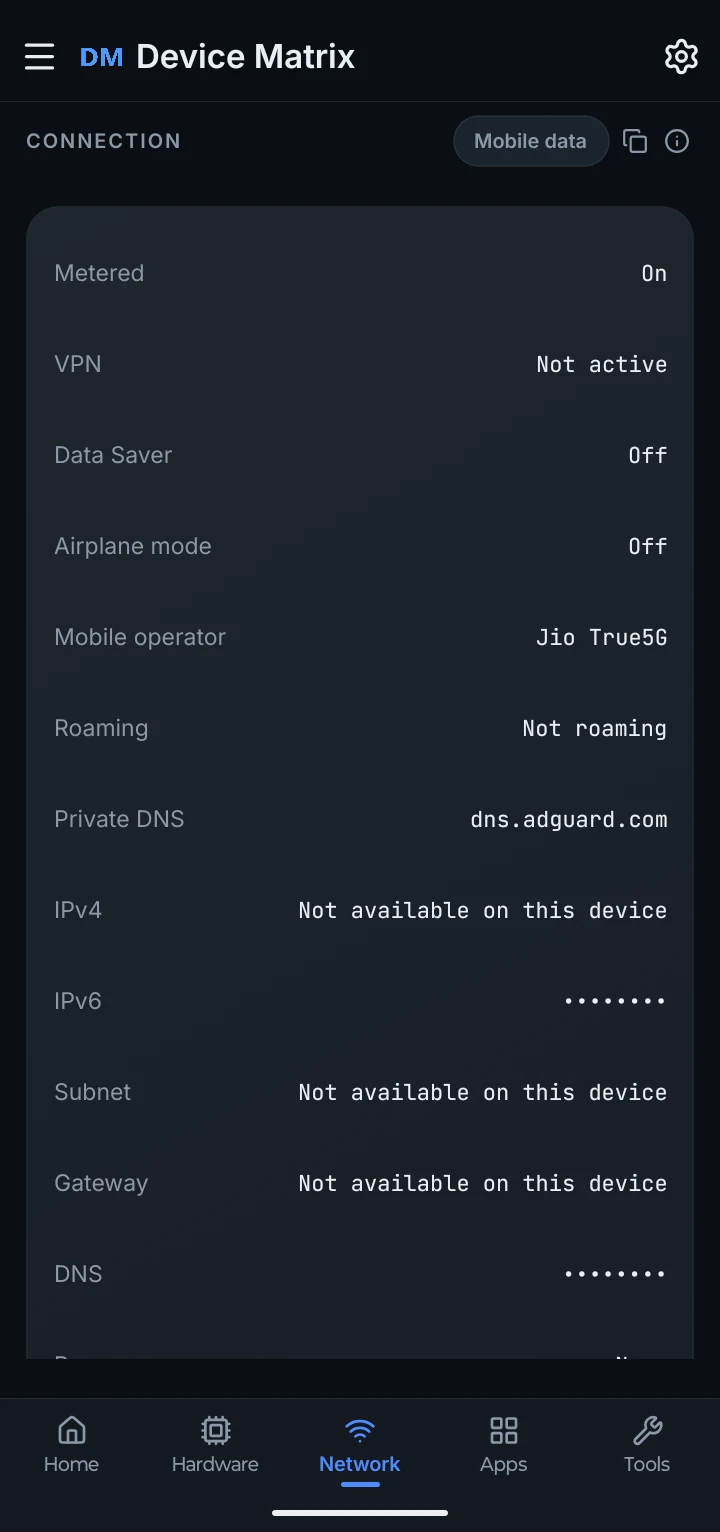
A quick read of the connection
See whether the link is metered, whether VPN or Data Saver is on, and which Private DNS and IP details your phone reports.
Share the context, not the identifiers
Before you send a screenshot to a friend, a seller or a support agent, masking can hide supported identifiers such as IP addresses, DNS details and Wi-Fi names. You can reveal a value briefly when you need it, and standard reports keep those details hidden. Masking changes what you show; it does not change the connection itself.
What you can explore
Connection status
See available Wi-Fi and mobile network details in one view.
VPN and Data Saver
Check whether Android reports either one as active.
Private DNS and IP details
Review the values your phone exposes, with missing fields clearly labelled.
Mask before sharing
Hide supported identifiers while viewing or sharing, and reveal them only when needed.